Use the Create Environment page to create a virtual machine within an environment. You can set the VM's parameters and storage requirements here.
- Click the Environments tab.
- Click Create Environment.
- In the left navigation pane, click General Setup.
- Type a name for the environment in the Name text box.
- Specify when you want the request to begin. If you click Select Start Date and click the Start Time box, a calendar displays. Click the day you want the request to begin.
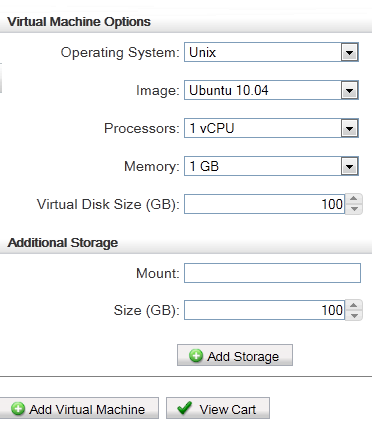
- In the left navigation pane, click Virtual Machine. In the Virtual Machine Options box, select an operating system. Select an image from the Image drop-down list. The contents of this drop-down change depending on which Operating System you selected. Specify the number of processors, the amount of memory, and the size of the virtual disk (in GB). The maximum number of processors is 4, the current maximum amount of RAM is 8 GB, and the maximum amount of disk space is 1000 GB. In the Additional Storage box, specify a drive, and size of the storage (in GB), and click Add Storage. Click Add Virtual Machine to add the VM.
- In the left navigation pane, click Physical Machine. In the Physical Machine Options box, select an operating system. Select an image from the Image drop-down list. The contents of this drop-down change depending on which Operating System you selected. Specify the configuration of the physical machine in the Hardware Configuration box. Specify a mount, and size of the storage, and click Add Storage. Click Add Physical Node to add the physical machine.