Searching, sorting, and filtering VMs
The Virtual Machine Management page has searching, filtering, and sorting options to help you find what you need and organize what you see. The search tool also lets you create your own filter(s).
- Go to the Virtual Machine Management page (Services > VM Management). For details, see Fields: Virtual Machine Management.
- Enter your search terms in the text box.
- Use the drop-down to narrow your search to a specific field (for example, "Power").
- Select the Search icon or press Enter to do the search.
- If your filter produces a large number of results, you can use the paging options to navigate through pages of results. For more information, see Fields: Virtual Machine Management.

You should not use the ampersand (&) character in your search.

The list updates to show only the VMs that match your search criteria.
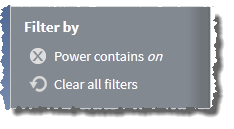
When you search on a specific field, the field value you selected is noted at the top of the Filter by list. For example:
To sort VMs in the list
- (Optional) Search for VMs (see To search and filter VMs).
- Click the field you want to sort by. For example, if you want to sort by the number of processors on the VM, click the Procs column.
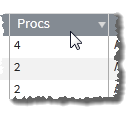
Click once to sort in alpha-numeric ascending order; twice to sort descending order.
The VMs in the list reorder to match your sort selection.
Tip: To save a set of filters and specific sorting order for easy reuse, bookmark the Virtual Machine Management page in your browser after you finish creating your filters.
Related topics